
image Original Photo

TipLogo Buy Me a Coffee
Local Upload
Clear All

badge Design and Background

Photo Background Color

square White (Official Standard)
square Light White (Common)
square Light Grey White (Accepted)
square Neutral Light Grey (Used by Authorities)
palette Custom

Photo Specifications

DPI (Resolution)

Format

Print Version

The print layout places several photos together for easy printing.

Application Instructions

Photos taken may be rejected by authorities. This website is not responsible for any losses caused.
  • The photo must be a recent color portrait taken within the last 6 months, accurately reflecting the applicant’s current appearance.
  • The applicant must face the camera directly with eyes open, looking forward, and maintain a neutral expression without smiling.
  • The full head and upper shoulders must be visible, with all facial features clear and undistorted.
  • The background must be plain white or light gray, evenly lit with no shadows, textures, or objects.
  • Lighting must be soft and even, with no facial shadows, reflections, overexposure, or backlighting.
  • No hats, head coverings, or accessories are allowed unless required for religious or medical reasons, and they must not obscure facial features.
  • If glasses are worn, lenses must be clear with no glare, and frames must not cover the eyes; removing glasses is recommended.
  • Hair must not cover the eyes, eyebrows, or facial outline. Long hair should be neatly arranged.
  • No beauty filters, skin smoothing, slimming, or digital modifications that alter natural appearance are allowed.
  • The photo must be sharp and free of noise, red-eye, compression artifacts, stains, watermarks, or editing traces.
extension banner

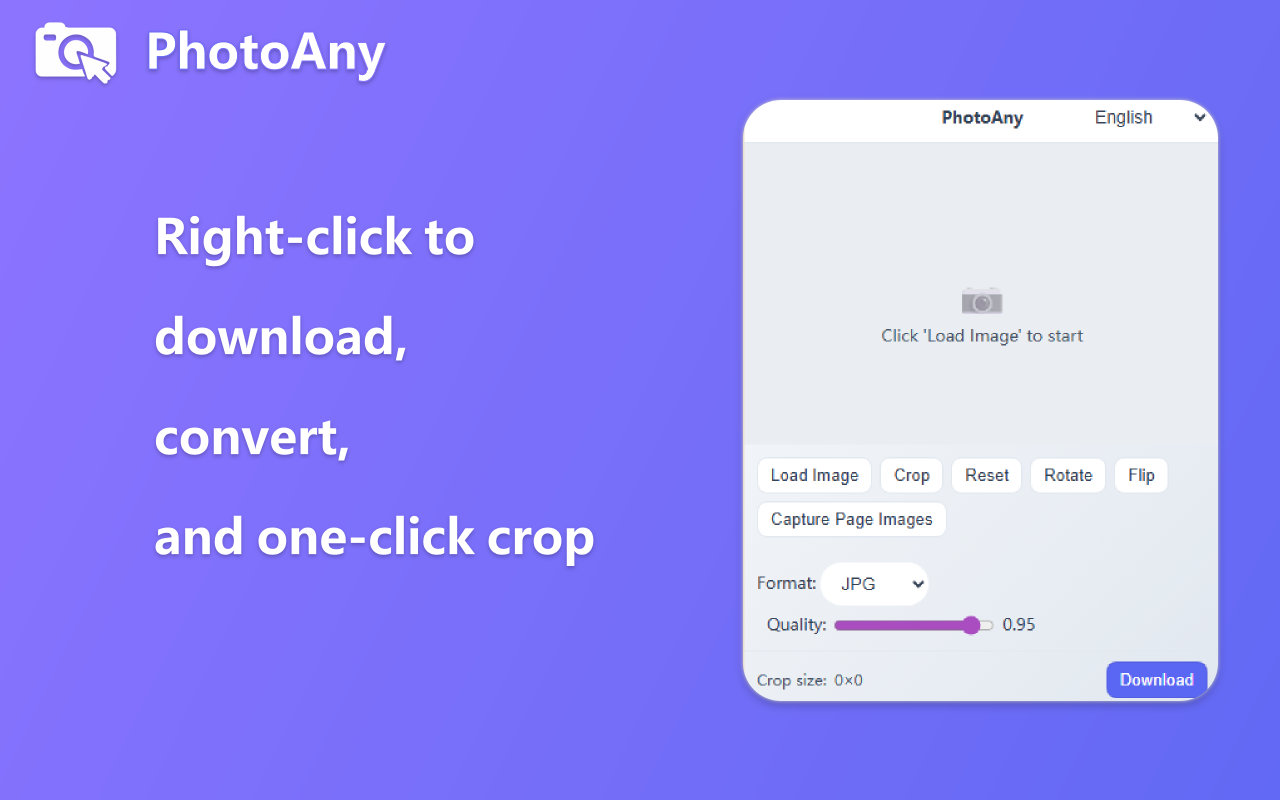
PhotoAny Browser Extension

Right-click images to quickly convert formats and crop for custom saving. Learn more

What can I do with PhotoAny?

  • Create high-quality ID photos that meet passport, visa, resume, and other requirements
  • Support multiple size and background color options to meet the requirements of different countries and institutions
  • Fast and convenient, simply upload a photo and generate an ID photo in minutes
  • Provide print layouts for users to print ID photos themselves

How to use PhotoAny to create ID photos?

  • Upload Photo: Click the upload button and select a photo that meets the requirements
  • Select ID Photo Size: Choose the appropriate ID photo size according to your needs
  • Select Background Color: Choose the appropriate background color according to requirements
  • Adjust Photo: Adjust the photo position and size according to the prompts to ensure it meets the requirements
  • Generate ID Photo: Click the generate button and wait a few minutes to get your ID photo
  • Download and Print: Download the generated ID photo and select a print layout for printing

Frequently Asked Questions

Common questions about free online image tools and AI processing.